
Switching From Strong or Hevy: Keep Your History
Trainer can preview and import Strong and Hevy CSV workout history, with unit checks and unmatched exercises preserved as custom entries. Keep your original export, inspect the preview, and recreate your active routine before relying on the new app's next-set targets.
In this guide
What actually transfers when switching from Strong or Hevy?
Trainer can import Strong and Hevy CSV exports, preview the records, and save them to your history. The workflow described here was reviewed for the October 19, 2026 article; we did not perform a new device import for this guide. The supported job is transferring workout records, not reproducing every screen, subscription, routine, friend connection, or chart from the old product.
The parser has fields for exercises, workouts, completed sets, load, repetitions, and additional values when the recognized file supplies them. Missing values do not become evidence that you performed something. A file can also contain unreadable rows. The preview reports skipped rows so that a damaged or incompatible record is not silently presented as a complete transfer.
What should you save before opening the importer?
Export your history from the old app using its current export instructions, then save an untouched copy somewhere you can find again. This guide does not verify the latest Strong or Hevy export-menu location. Keep the original file rather than replacing it with a spreadsheet version that may alter dates, separators, or number formatting.
Also save a readable note of your current routine and a few recent sessions. Include the exercise variation, units, actual reps in each working set, and anything important about the equipment. That short reference helps you check whether the imported record means what you think it means. An archive protects the past; your active routine determines what you will do next.
Do not delete your old account or history to make the move feel final. You can compare a replacement while retaining the old record. History migration is complete enough to use only when you have checked meaningful examples, not when a file picker closes or the total number of sessions looks approximately right.
Where is the supported import flow in Trainer?
The implemented Settings row is labeled "Import from Strong or Hevy." Choose the recognized CSV file to open the preview. The preview shows workouts, sets, and exercises, with additional counts for already imported sets, sets to update, and skipped rows when applicable. These counts describe the file and proposed operation before you confirm it.
Read the whole preview. A large workout total can hide a small number of important missing sets. If an older export covers only part of your training, importing it does not recover sessions that were never in the file. Stop and inspect the archive when the date range or recent workout details do not match your expectations.
How do kilograms and pounds affect an import?
The parser uses a stated file unit where present. Where the file does not identify its weight unit, the preview asks whether its weights are in kilograms or pounds. Choose the unit in which those exported numbers were recorded, rather than the display unit you would like to use in Trainer afterward.
For example, a historical set recorded as 135 pounds should not become 135 kilograms because your new app displays metric units. An explicitly identified pounds column and an ambiguous bare weight column are different inputs. Inspect a known barbell set and a dumbbell set after importing; the number alone will not tell you whether your old dumbbell convention meant one implement or the pair.
The plate calculator can help you reconstruct a known total barbell load. It cannot detect what an ambiguous historical number meant. Use your own familiar session as the reference instead of assuming that an impressive-looking new personal record proves the conversion was correct.
What happens to unmatched exercises and unreadable rows?
The preview lists names that do not match Trainer's exercise catalog. The implementation preserves these as custom exercises with their history, rather than promising a perfect catalog match. That is useful for a specific machine or custom movement, but it still deserves inspection. Similar exercise names do not always mean the same movement or equipment.
Skipped rows are different. The preview explains that rows with unreadable dates or numbers are not imported. If the skipped count is unexpected, preserve the file and investigate before continuing. Do not hide a warning just to make totals match, and do not invent missing repetitions or effort ratings to produce a tidier chart.
| Preview detail | What it means | Your check |
|---|---|---|
| Unknown weight unit | The file does not state kg or lb | Select the unit used in that export |
| Not matched | A name will become a custom exercise | Check the variation and equipment |
| Rows skipped | Some values could not be read | Inspect the original relevant records |
| Sets to update | Existing imported values differ | Review before confirming replacement |
Can reimporting the same file change existing records?
The import service recognizes previously imported sets. Its preview can identify existing sets whose numbers differ and states that importing replaces their weight, reps, and RPE. This is an important distinction: reimporting is not always a harmless second copy. Read the proposed update count, especially after correcting units or editing historical results.
Keep the original archive and review a known changed set afterward. Duplicate recognition in the implementation is a protection, not a reason to keep feeding modified files into the app without looking. If the preview proposes a surprising number of replacements, cancel and establish which file represents the history you intend to keep.
What does not automatically transfer with workout history?
A workout record is not a complete copy of a training account. Do not expect Strong or Hevy saved routines, followers, social comments, every note convention, subscription rights, or proprietary analytics to migrate intact. Do not promise a feature merely because an export contains a column with a familiar name.
Rebuild the routine you are actually using and inspect its starting targets. Keep unusual movements separate if combining them would make comparisons misleading. Your old charts can remain a reference while new sessions accumulate. The progress tracking guide explains which comparisons remain useful when an exercise definition or measurement method changes.
How does planning progression change the next workout?
A log records the work; a progression rule connects that record to the next attempt. Trainer offers editable targets informed by completed history, along with equipment-aware plans and saved or library programs. Core logging, next-weight suggestions, programs, and recorded history are free. Optional AI features have account, consent, and allowance requirements.
For a familiar bench press, imagine three sets of eight were planned, but the actual result was eight, seven, and six. Preserve the actual result. A sensible next step might be repeating the load and building the later sets. A suggestion should help you inspect that decision, not quietly rewrite the missed reps as success or force you to take a heavier weight.
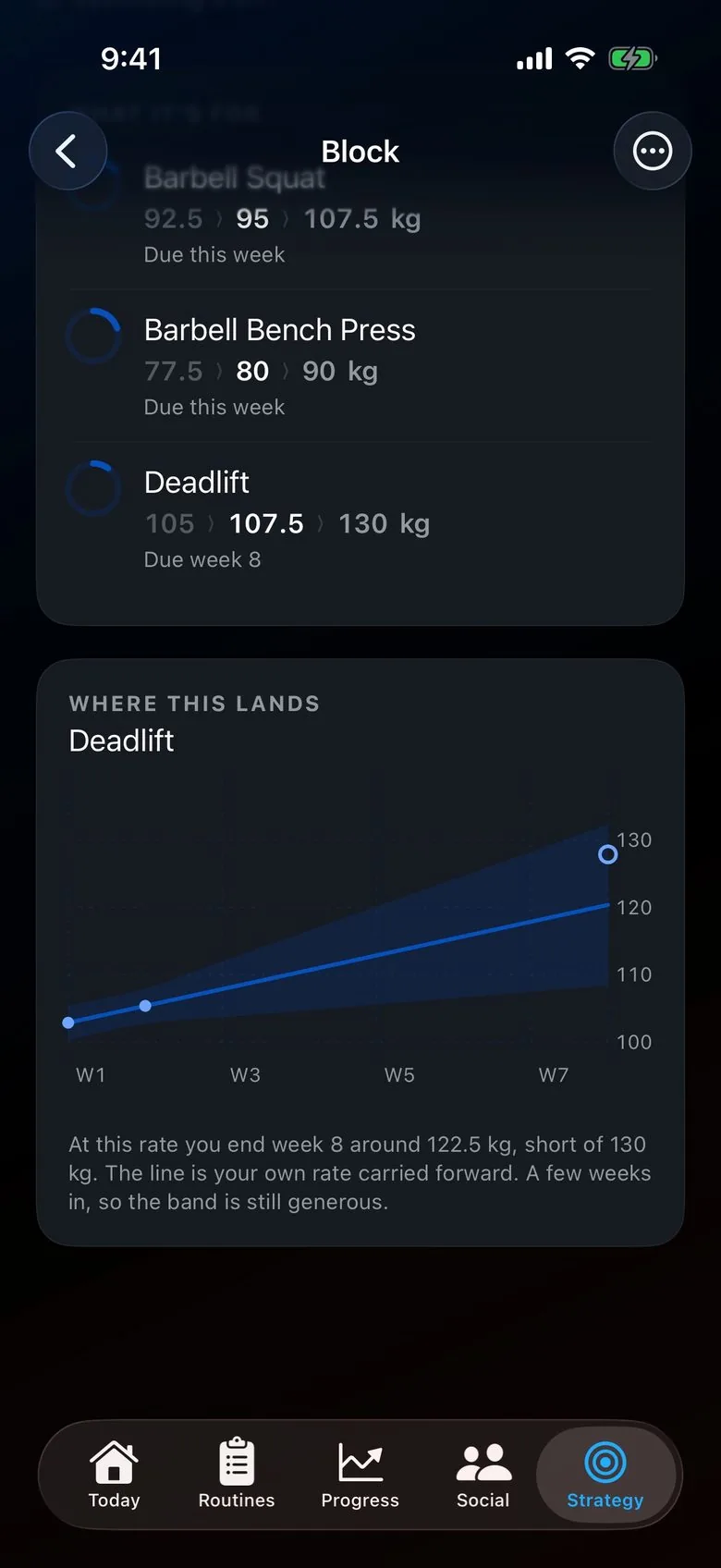
Use the progressive overload guide to choose a clear condition for increasing. The progressive overload calculator illustrates a sequence that assumes successful exposures. Real training repeats or adjusts targets when that assumption fails. Importing more history does not make a hypothetical eight-week chart a forecast.
How should you test the first routine after moving?
Keep one familiar session stable. Use the same exercises, comparable equipment, ordinary rest, and a manageable load. Before each working set, compare the displayed history with your saved reference. Edit an inappropriate starting target. Record what you actually complete, then inspect the saved session under the expected exercise before using its next suggestion.
Changing the app, split, exercise list, and units simultaneously makes problems harder to diagnose. If you need a simpler routine, the beginner full-body guide supplies a separate starting example. Do not add that whole program on top of your current routine during a migration test.
When is staying with Strong or Hevy sensible?
Stay if your current app makes a working program easy to execute and your reason to move is vague. Hevy's documented offering includes adaptive Hevy Trainer in Pro, so this is not a choice between AI and a necessarily manual product. Strong's routine-and-log focus can be exactly right when a coach or established plan already supplies the decisions.
Read the Strong alternatives guide or Hevy alternatives guide when you can name the missing job. A successful move preserves understandable records and makes the next session easier to run. A new interface alone does not establish better training, and there is no need to abandon a useful history to test another workflow.
Frequently asked questions
Can Trainer import both Strong and Hevy history?
Yes. Trainer can import Strong and Hevy CSV exports, preview the records, and save them to your history. We did not perform a new physical-device import test for this article.
Will my Hevy friends and routines move too?
That is not promised. The implemented flow imports workout history. Preserve social connections separately and recreate your active routine rather than assuming a full account transfer.
What happens to an exercise Trainer does not recognize?
The preview lists unmatched names, and the implementation creates custom exercises carrying their history. Inspect the names and equipment before combining records with an existing movement.
Can importing again overwrite something?
Yes. The preview can report existing sets to update and explains that their weight, reps, and RPE will be replaced. Review that count and keep the original file before confirming.
Try the numbers for yourself.
Plate loading
See exactly which plates belong on each side of the bar.
Your next working set
Decide when to add reps, increase load, or repeat the weight.
A useful next read.
All guides
Progressive Overload: The Beginner's Guide
More reps. A little more weight. Learn when to make the next move.
How to Track Fitness Progress From Your Workouts
Choose consistent measures and turn your workout record into a useful next decision.
Separate free logging, social accountability, and paid planning.